

Migration to Image Preset Metadata from Native Asset Field Using Automate
Native File field data migration to the image preset custom field with preset metadata creation in bulk for all existing entries using the Automate.
Diagram Walkthrough
Tactical Rundown:
The first step is setting up an Automation Trigger to set the trigger for bulk entries, we can choose either a workflow trigger, release trigger, or environment trigger to kick-start Automation for bulk entries.
Here's how the Automation would work:
Set up the Workflow trigger
Let's set up the Workflow trigger in Automate and get the output of entries which is moved to the image preset migration stage.
Note As a prerequisite, the respective workflow should be configured. Here's the guide on how to do so.
Click to enlargeGet Entry data for native File field values
Get Entry data for native asset file field values which need to be transformed to create metadata against it
Click to enlargeUse Transform action to Create Preset Metadata Request Body
Use Transform action to Create Metadata Request Body using native file field UID data
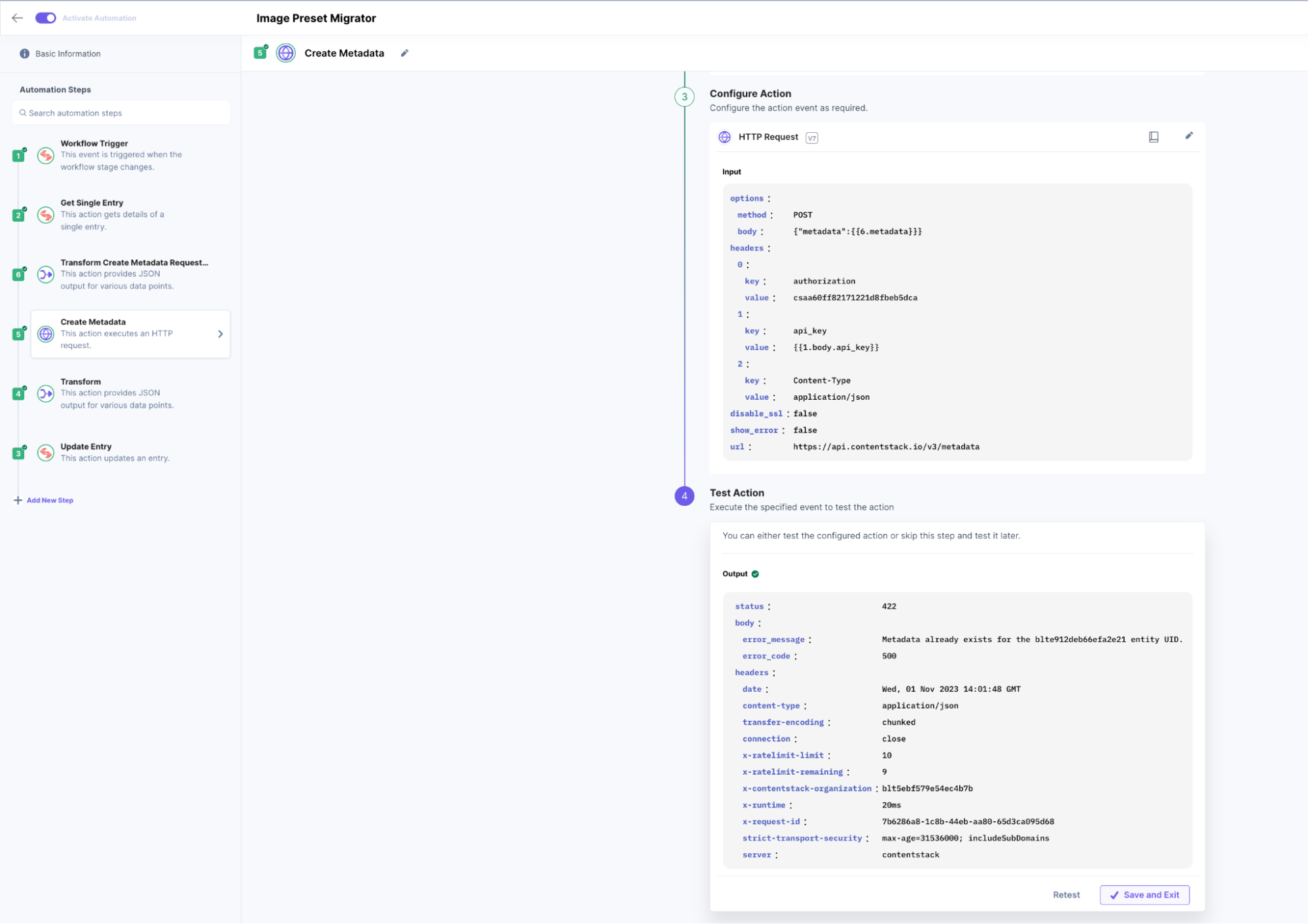
Click to enlargeMake Create Metadata CMA call
Make Create Metadata CMA call against those native field asset UIDs
- Use Transform action to generate request Preset field Object for Entry update for adding metadata to preset field
Transform Request Object for Entry update to migrate metadata to preset field.
Click to enlarge{ "entry": { "banner_image_preset": { "uid": "{banner_image_uid}", "_content_type_uid": "sys_assets", "lookup":"{lookup}", "metadata": "{metadata}", "extension_uid": "blt42b2de65c82f3ce3" }, "asset": "{asset}" } } - Use the Update Entry action to add Preset image data in the custom preset app field
Update Entry with Preset image data in the custom preset app field
Click to enlarge - Enable Throttle Execution toggle in Automation Setting
While setting up Automate Enable Throttle Execution toggle to throttle automation's executions to help stay within API rate limits while performing bulk update operations on Entries.
Click to enlarge - Verify Migration of Preset data in entries
Migration of native image field to preset app field completes